The Update Routine
Keeping a Proxmox cluster, Talos Kubernetes, Synology, pfSense and Docker services updated: rolling upgrades, Renovate, and a cadence that spares your weekends.
Most homelab setups break in one of two ways: hardware fails, or software rots. The second one is slower and quieter: a package left unpatched for six months, a container image with a known CVE still running because “it works, I’ll update it later.”
My setup spans a three-node Proxmox cluster, a Talos Kubernetes cluster, a Synology NAS, pfSense, and Docker services on Oracle Cloud. Different release cadences, different failure modes if ignored. This is what keeps it current without becoming a second job.
The checklist
The foundation is a checklist in Joplin, reset monthly, covering every layer that needs a human. Its value isn’t the content. It forces a decision. You either tick it, or you consciously skip it.
| Layer | Component | Cadence | Method |
|---|---|---|---|
| Network | pfSense, TP-Link WiFi | Monthly | Manual |
| Hypervisors | Proxmox cluster (3 nodes) | 2× / month | Manual, rolling |
| Hypervisors | Dell R720 | On boot | Manual |
| Storage | Synology DS223+ | Automated | DSM scheduler |
| VMs | Talos K8s nodes | Automated | Renovate |
| Cloud | Oracle Ubuntu + Docker | 2× / month | apt + Portainer |
The split between automated and manual is intentional. Automation handles what’s low-risk and high-frequency. Manual attention goes to the layers where a bad update can take down the whole environment.
Network
pfSense CE
pfSense Community Edition moves slowly. Major releases are infrequent, and Netgate increasingly nudges CE users toward pfSense Plus, but the CE branch is still maintained for security patches.
The standard update path (System → Update) covers full version upgrades. For between-version patches, the System Patches package adds a second layer: it pulls individual patches directly from the pfSense source repository and applies them without a full upgrade cycle.
To install it: System → Package Manager → Available Packages → search "System Patches".
Once installed, System → Patches shows any recommended patches for your running version. Most months the list is empty. When there is something, it’s typically a targeted fix, applied in under two minutes with no reboot.
TP-Link WiFi
Firmware for the AX3000 ships infrequently, a few times a year at most. Monthly check via the admin interface is more than enough. The update applies in under two minutes with a brief disconnection; all connected clients reconnect automatically.
Hypervisors: the Proxmox cluster
The part most guides skip: how do you update a multi-node Proxmox cluster without taking everything offline?
My cluster is three nodes: Beelink GTi 13 (px-0, i9-13900H, 64GB DDR5), and two Dell OptiPlex 6500T units (px-1, px-2, each 32GB DDR4). Full specs in the rack tour. Each node runs one Talos VM for Kubernetes, so losing a node during an update means losing a K8s control plane node. Not catastrophic with three nodes, but still worth doing cleanly.
Rolling, one node at a time
The rule: update one node at a time, verify it’s back healthy before touching the next. Kernel updates require a reboot, and on a cluster node, that reboot needs to be planned.
Check the cluster first
pvecm statusshould show every node online. If one is already degraded, fix that first; never start a rolling upgrade on an unhealthy cluster.Move the VMs off
qm migrate <vmid> <target-node> --onlinelive-migrates each VM while it keeps running. For px-0, the Talos control plane VM goes to px-1.Upgrade
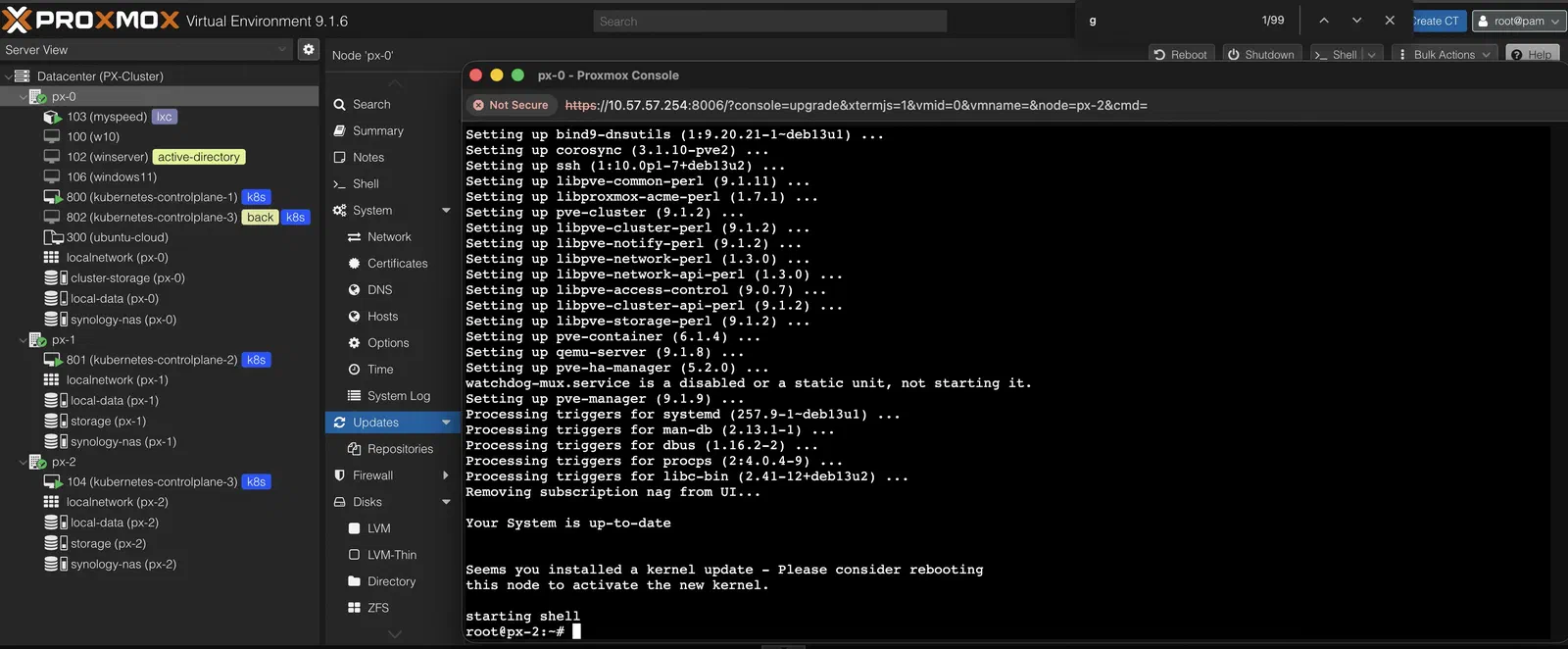
apt update && apt dist-upgrade -y. On Proxmox it has to bedist-upgrade: plainupgradewon’t install new packages or remove obsolete ones, and kernel and pve package changes need both.Reboot and verify
After the reboot,
pvecm statusfor membership,uname -rfor the new kernel,pveversionto confirm the version matches the other nodes.Move the VMs back
Then the next node.
Why px-0 goes first
px-0 (Beelink) is the highest-spec node (64GB DDR5, i9-13900H). The Talos VMs temporarily land on px-1 and px-2 during the Beelink upgrade. Both OptiPlexes together have 64GB combined, enough to absorb the load short-term. Once px-0 is back online and clean, the VMs migrate back to it, and the OptiPlexes update one at a time with nothing critical running on them.
The R720
The R720 is nearly decommissioned and boots only occasionally for benchmarking or one-off experiments. The rule is simple: boot → update → do the work → shut down. Never leave it running on a stale package tree.
apt update && apt dist-upgrade -yStorage: Synology DS223+
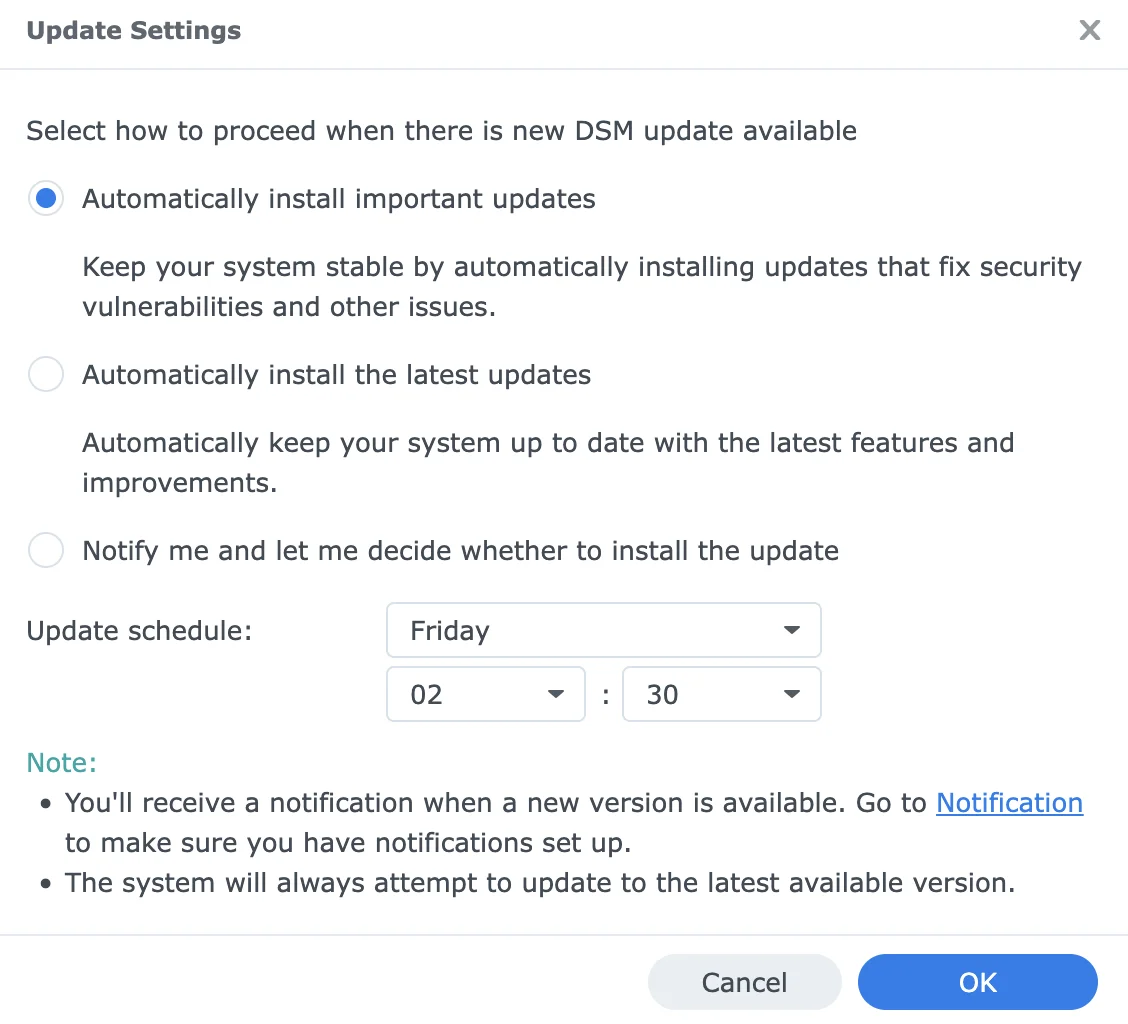
Synology DSM has two auto-update modes worth understanding:
- Automatically install important updates: security patches and critical stability fixes only. Doesn’t touch major version upgrades or optional package updates.
- Automatically install the latest updates: everything, including feature releases that can change behavior or require service restarts.
I use the first option. It runs on a schedule (Friday 02:30) so the NAS is never mid-update during active use.
Major DSM version upgrades I handle manually after reading the release notes. These occasionally change NFS/SMB behavior or package compatibility, so they are worth a few minutes of reading before applying.
The biweekly manual check isn’t for applying updates. It verifies that the automated jobs ran. DSM logs every update under Control Panel → Update & Restore → Update History. One glance confirms nothing silently failed.
VMs: Talos, on Renovate
The three Talos VMs are the only layer I don’t touch manually at all. This is where automation actually pays off.
Renovate Bot monitors the infrastructure repo (github.com/meroxdotdev/infrastructure) and opens pull requests whenever it finds an updated version of anything: container images, Helm charts, Flux components, GitHub Actions, Talos OS itself, Kubernetes version.
The settings that matter
From .renovaterc.json5, trimmed:
{
  extends: [
    "config:recommended",
    ":automergeBranch",
    ":dependencyDashboard",
    ":disableRateLimiting",
  ],
  schedule: ["every weekend"],
  packageRules: [
    {
      matchManagers: ["github-actions"],
      matchUpdateTypes: ["minor", "patch", "digest"],
      automerge: true,
      minimumReleaseAge: "3 days",
    },
    {
      matchManagers: ["mise"],
      matchUpdateTypes: ["minor", "patch"],
      automerge: true,
    },
  ],
}
schedule: every weekend: every PR lands in one weekend session instead of trickling in daily. One review cycle a week, not twenty.:disableRateLimiting: by default Renovate caps how many PRs it opens at once, and in a repo with many dependencies some updates queue silently for weeks. Without the cap, everything surfaces on the weekend.:automergeBranch: when something is allowed to automerge, it merges straight from its branch, without a PR.minimumReleaseAge: 3 days: a GitHub Action doesn’t merge the day it’s published, which catches the occasional release that gets yanked within 48 hours.
What merges itself
Only two things: GitHub Actions (minor, patch and digest bumps) and the mise tool versions. Container images, Helm charts, Flux components and Talos all arrive as PRs that I review on the weekend. Major versions are always manual.
Two rules in the config exist because an update merged that shouldn’t have:
Things Renovate can’t see on its own
Some versions live in files Renovate has no manager for. A customManagers regex rule in the config matches an annotation comment, and the line under it becomes a dependency:
# renovate: datasource=docker depName=ghcr.io/siderolabs/kubelet
KUBERNETES_VERSION=v1.31.1
Renovate resolves the version against the Docker registry and opens a PR when a new tag appears. The rule’s file patterns cover .yaml, .env and .sh files, so the annotation works in any of them.
The weekly merge session for K8s takes about 10 minutes: scan the Renovate dashboard issue, check any major version PRs for breaking changes, merge. Everything else Renovate handled while I wasn’t looking.
Cloud: the Oracle instance
The Oracle instance runs Ubuntu 24.04 on an Ampere A1 (4 vCPU, 24GB RAM, the free tier). All Docker services run through Portainer.
Container images
Portainer detects outdated images automatically: when a container’s image has a newer digest available upstream, it shows a marker in the container list.
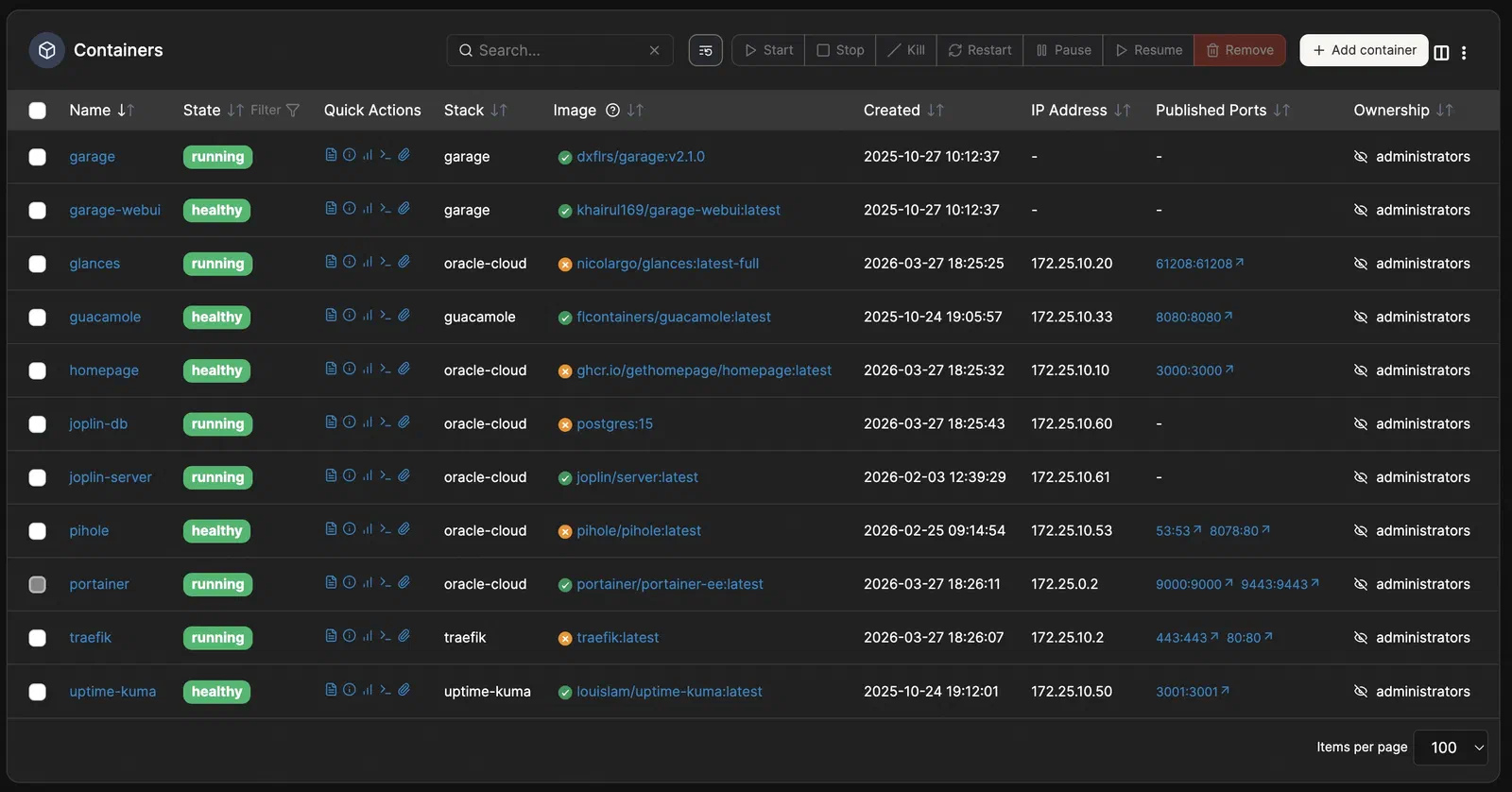
The update flow: pull the new image → recreate the container. In Portainer’s UI: container detail → Recreate → enable “Re-pull image”. All volume mounts and environment variables carry over from the existing container config, so there is nothing to re-enter.
The host itself
apt update && apt upgrade -y
apt autoremove -y
Twice a month, same as the Proxmox nodes. It’s internet-facing (Traefik and Pi-hole sit on it), so staying current matters more here, not less. A kernel update only takes effect after a reboot; /var/run/reboot-required exists when one is pending.
What to automate, and what not to
The pattern across all of this:
Automate when: the update is low-risk, high-frequency, and the failure mode is contained. Synology security patches, GitHub Actions and tool bumps are safe to automate because they’re scoped, reversible, and the blast radius is small. Container images sit on the line: Renovate finds them, a human merges them.
Stay manual when: the update touches the infrastructure layer itself: Proxmox host OS, pfSense, major DSM versions, K8s major upgrades. These can take down multiple services at once and benefit from a human checking cluster health before and after.
The checklist isn’t overhead; it’s the audit trail. It turns “I think I updated everything recently” into “I know I updated everything on these dates.”
Full infrastructure: the rack tour. Kubernetes GitOps setup: github.com/meroxdotdev/infrastructure.